How to Prepare Seamless Patterns for Textile Printing

Getting a beautiful pattern design is only half the battle. The other half that separates a digital concept from actual printed fabric is preparing your files correctly for production. Whether you're printing on cotton, polyester, or silk, each printing method has specific requirements for resolution, file format, color count, and tile dimensions.
This guide walks you through the major types of textile printing, what each method demands from your artwork, and exactly how to get your patterns production-ready using PatternedAI's export and preparation tools.
Types of Textile Printing (and What Each Requires)
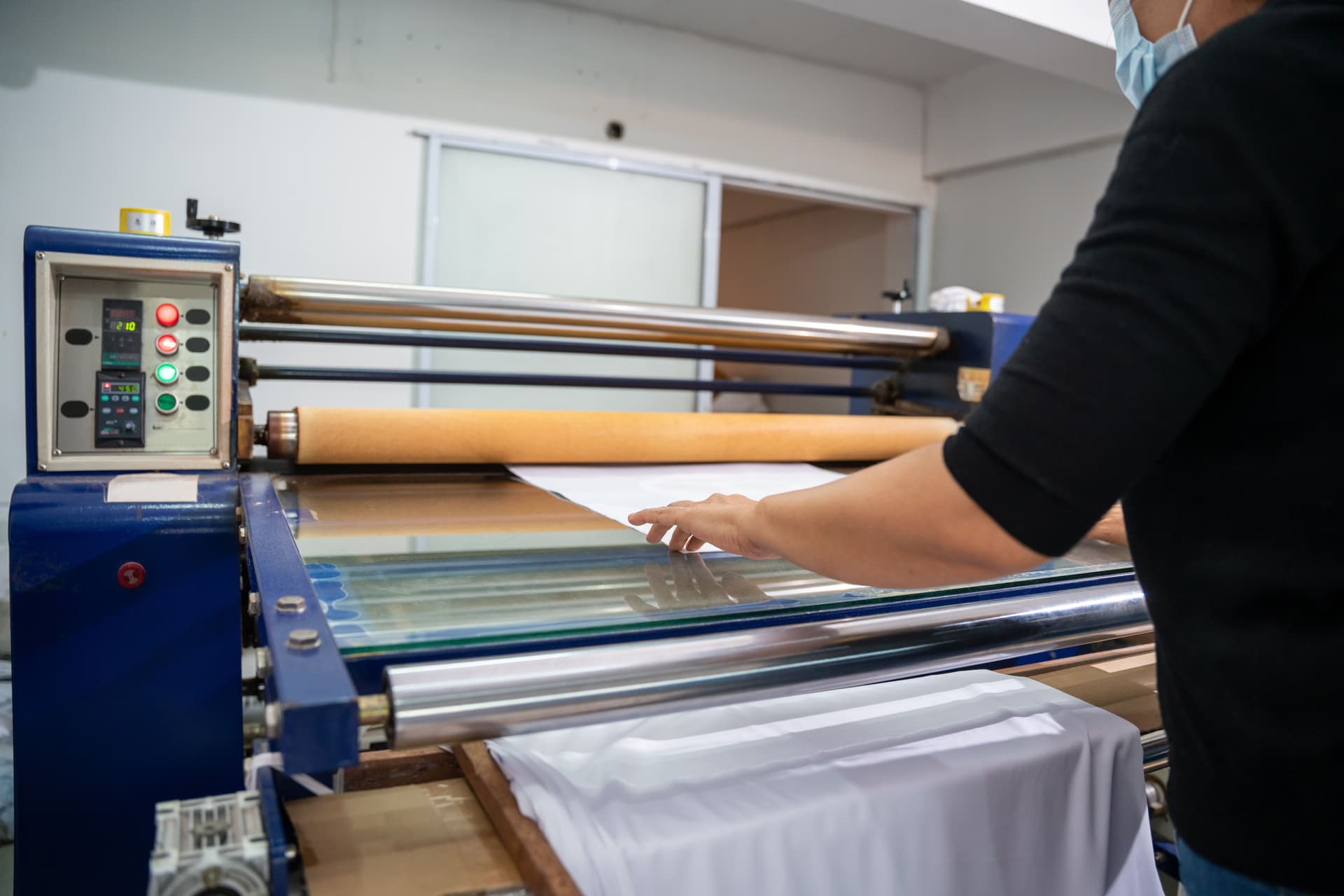
Digital Printing (Direct-to-Fabric / DTG)
Digital textile printing works like a high-end inkjet printer: CMYK (or extended gamut) inks are sprayed directly onto fabric. It's the most accessible method for independent designers and short runs because there are no setup costs per colorway and no limit on the number of colors in your design.
File requirements:
- Format: High-resolution raster (PNG or TIFF)
- Resolution: 300 DPI minimum at the final print size — this is the industry standard for fabric printing
- Color mode: RGB files are generally accepted, but check with your printer as some may request CMYK
- Tile size: Depends on your repeat size. A 30 cm × 30 cm repeat at 300 DPI requires a tile of approximately 3,543 × 3,543 pixels
Digital printing is ideal for photographic patterns, watercolor textures, and any design with gradients or a large number of colors.
Rotary Screen Printing
Rotary screen printing is the workhorse of mass textile production. Ink is pushed through engraved cylindrical screens — one screen per color — as fabric moves through the machine at high speed. It's fast and cost-effective at scale, but each additional color adds cost because it requires a separate screen.
File requirements:
- Format: Vector (SVG or AI) with clean, separated layers — one per color
- Color count: Typically 6–12 colors maximum. Fewer colors = lower production cost
- Repeat size: Must match the screen circumference exactly. Common circumferences are 64 cm (25.2 in), 82 cm (32.2 in), and 91.4 cm (36 in)
- No gradients or transparency: Every element must be a solid, flat color
Flat Screen Printing
Similar to rotary but uses flat screens that press down onto stationary fabric, then the fabric advances. Used for larger repeats and higher-end production, including home textiles, upholstery, and decorative fabrics.
File requirements:
- Format: Vector (SVG or AI) with separated colors
- Color count: Usually 1–4 colors maximum
- Repeat dimensions: Can be much larger than rotary — up to 3 m or more in some setups
- No gradients: Flat, solid fills only
Sublimation Printing
Dye-sublimation uses heat to transfer ink from paper to polyester-based fabrics. The dye becomes part of the fiber, producing vibrant, wash-resistant color. Popular for activewear, swimwear, and all-over-print apparel.
File requirements:
- Format: High-resolution raster (PNG or TIFF)
- Resolution: 300 DPI at print size
- Color mode: RGB (sublimation printers use their own color profiles)
Block and Transfer Printing
Block printing is a traditional, artisanal method in which carved blocks are stamped onto fabric by hand. Transfer printing uses heat to move a pre-printed design from paper to fabric. Both methods are used for smaller runs and specialty applications.
File requirements for transfer printing:
- Format: High-resolution raster
- Resolution: 300 DPI
- Mirroring: Design must be mirrored before printing to paper (your printer will advise)
Resolution: The Question Everyone Asks
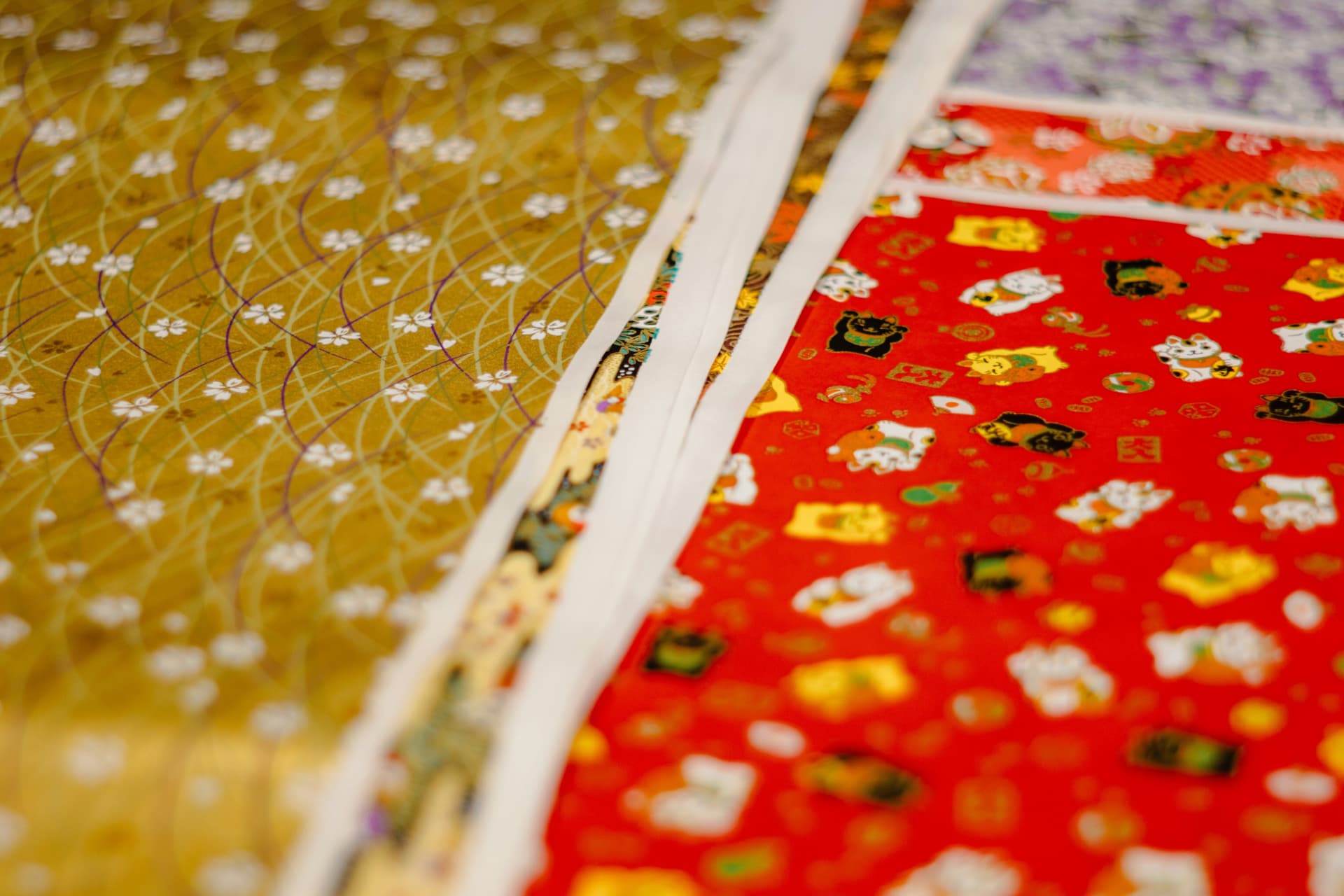
The single most common question from designers preparing files for print is about DPI and resolution. Here's the short answer: 300 DPI at the final print size is the industry standard for textile printing.
But DPI on its own is meaningless without knowing the physical dimensions. What actually matters is total pixel count. A 1,024 × 1,024 pixel tile at 300 DPI prints at roughly 8.7 × 8.7 cm (3.4 × 3.4 in). If your repeat needs to be 30 cm, you need significantly more pixels.
Quick reference: pixel dimensions needed at 300 DPI:
Repeat size | Pixels needed
10 × 10 cm | ~1,181 × 1,181 px
20 × 20 cm | ~2,362 × 2,362 px
30 × 30 cm | ~3,543 × 3,543 px
50 × 50 cm | ~5,906 × 5,906 px
64 cm (rotary screen) | ~7,559 px per side
On PatternedAI, the standard export tile is 1,024 × 1,024 pixels at 300 DPI. For production printing, you'll almost always want to upscale, which brings us to the toolkit.
Preparing Your Files: The PatternedAI Workflow

Step 1: Generate or Fix Your Pattern
If you're starting from scratch, PatternedAI's generator creates seamless, tileable patterns in a wide range of styles. If you already have artwork that doesn't tile properly such as a vintage fabric scan, a hand-drawn sketch, or an AI-generated image from another tool , you can use our Seamless Fixer.
The Seamless Pattern Fixer takes any flat image and converts it into a perfectly tileable pattern. It analyzes your artwork, intelligently fills the edges, and blends everything while preserving your original design at the center. It works on images from any source: Midjourney and ChatGPT outputs, scanned drawings, or broken repeats from other software.
Step 2: Check Your Repeat
Before you invest credits in upscaling or vectorizing, verify that your pattern actually tiles correctly. The free Seamless Pattern Checker displays your tile repeated at multiple zoom levels side by side, making seams, mismatched edges, or alignment issues immediately obvious. It works with patterns from any source, not just those created on PatternedAI.
Step 3: Upscale for Print Resolution
Once your pattern is seamless and color-corrected, the next step depends entirely on how it will be printed. Digital printing needs a high-resolution raster file. Screen and rotary printing needs a vector file with separated color layers. Choose the workflow that matches your production method.
Workflow A: Digital Printing (Upscale and Export PNG)
For inkjet, dye-sublimation, direct-to-fabric, and any raster-based print process.
A 1,024 × 1,024 px tile won't cut it for most production printing. The Pattern Upscaler intelligently enlarges your design up to 8,200 × 8,200 pixels while maintaining perfect seamlessness. Unlike basic resizing in Photoshop, it smooths transitions, removes compression artefacts, and preserves color harmony throughout the process.
Choose your upscale level (2x through 16x) based on your target repeat size and the printing method. For example, upscaling a 1,024 px tile by 2x gives you 2,048 × 2,048 pixels, enough for a roughly 17.3 cm repeat at 300 DPI. For extra large repeats, upscale to 8x (8,192 × 8,192 px) for approximately 69 cm at 300 DPI.
Note: upscaling 6x or higher requires a Business subscription. Credit cost varies by scale level and output size.
Once upscaled, export as a high-resolution PNG from the design page. PNG files open directly in Photoshop, Procreate, or any standard design tool, and are compatible with all plans.
Workflow B: Screen and Rotary Printing (Vectorize and Export)
For flat screen printing, rotary screen printing, and any workflow requiring clean, flat color separations.
Open the AI Image Vectoriser (available on the Business plan) and upload your pattern. The Vectoriser converts it to a production-ready vector file with fully separated color layers. It works with both seamless patterns and standalone images, just toggle the seamless option on or off after uploading depending on your artwork.
How many colors should you choose? For rotary screen printing, aim for 6–12 colors. For flat screen printing, keep it to 1–4. Fewer colors generally means lower production costs.
Choose your output format based on your deliverables:
- SVG — Color-separated layers, scalable vector format. Also available directly from individual pattern pages if SVG is all you need.
- Adobe Illustrator (.ai) — Color-separated layers, native Illustrator file ready for production use.
- Individual color TIFFs — One file per color, delivered as a zipped folder. Ideal for screen printing separations.
The Vectoriser maintains seamlessness across all output formats.
Step 4: Scale Your Vector Tile to Production Dimensions
When you open your SVG in Illustrator, the tile and artboard may be at default dimensions that don't match your production repeat size. To scale to exact centimeter dimensions for screen printing, select all objects and the artboard together and resize to match the required circumference, for example, 64 cm for a standard rotary screen.
Color Considerations for Production
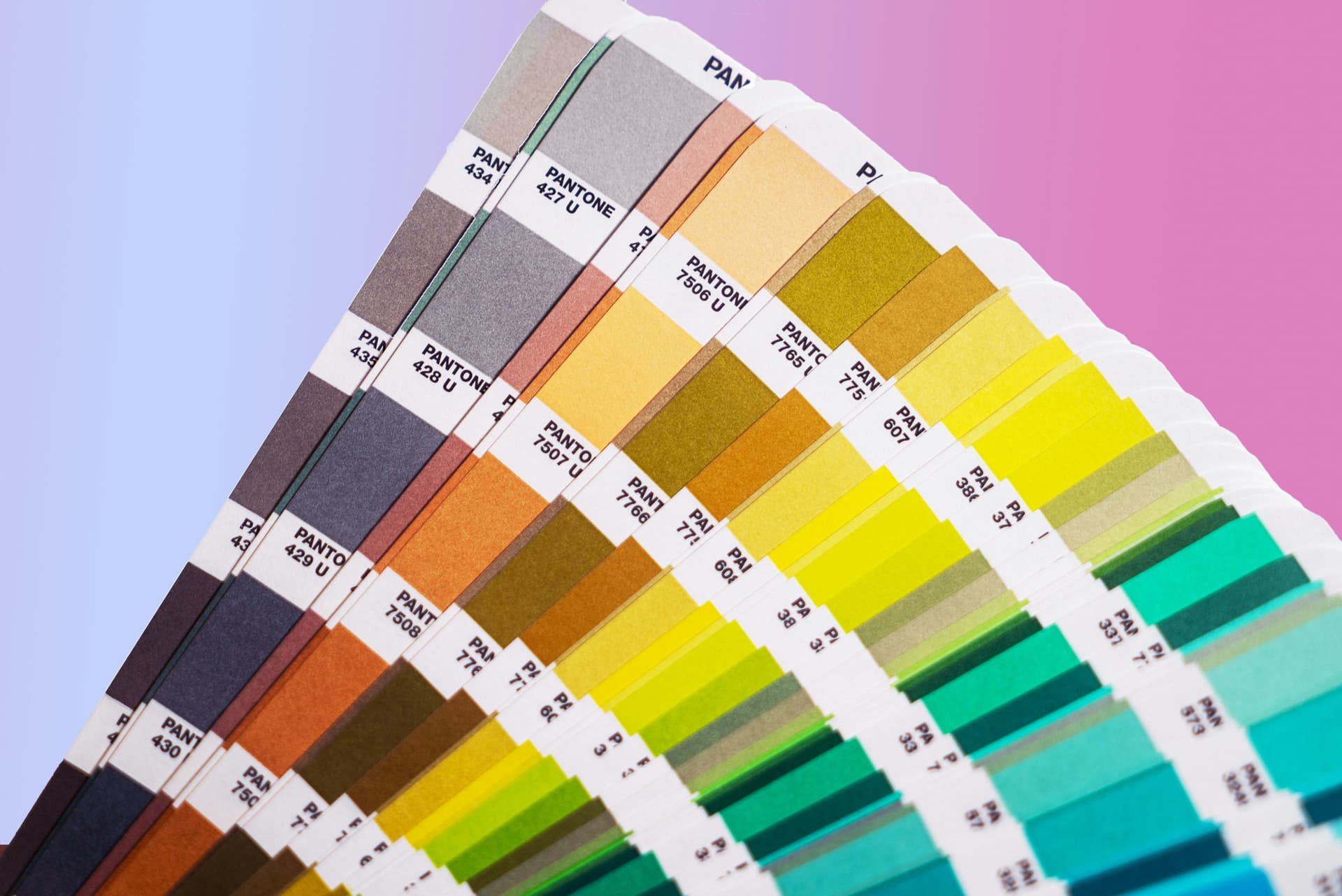
RGB vs. CMYK
Most pattern generators, including PatternedAI, work in RGB color space. This is fine for digital printing, where the printer's software handles color conversion. If your printer requires CMYK files, convert in Photoshop or Illustrator after export and proof the colors carefully as some vibrant RGB tones shift noticeably in CMYK.
Pantone and Spot Colors
For screen printing production, you'll typically need to specify Pantone or HEX references for each color in your design. After vectorizing your pattern and opening it in Illustrator, you can manually map each flat color to the nearest Pantone swatch. Dedicated color separation tools for automated Pantone matching are coming soon to the platform.
Why Colors Shift After Export
If your exported pattern looks different from the on-screen preview, it's almost always a color profile issue. Ensure your design software is set to the correct color profile (sRGB for screen, your printer's ICC profile for physical output) and that you're viewing the file in a color-managed application.
Conclusion
Preparing patterns for production doesn't have to be the painful part of the design process. With the right workflow you can go from concept to production-ready file in minutes rather than hours. Whether you're sending a PNG to a digital print bureau or handing over a color-separated SVG for rotary screen printing, PatternedAI's toolkit handles the technical heavy lifting so you can focus on what you do best: designing.