AI Pattern Editor: Adjust Details Without Starting Over

Generating a pattern you love is exciting. But often, the first version is not quite finished.
Maybe the overall style is right, but one flower feels too large. Maybe the repeat works, but a small element is distracting. Maybe the color palette is close, but one object needs a different shade. Or maybe the composition would look stronger if one motif faced another direction.
In the past, fixing those details often meant starting over with a new prompt or moving into Photoshop and manually editing the file.
Patterned AI’s Edit tool makes that process much easier.
With Edit, you can make precise changes to specific parts of your pattern while keeping the design seamless. Instead of regenerating the whole pattern, you can adjust only the element that needs work.
What Is the Edit Tool?
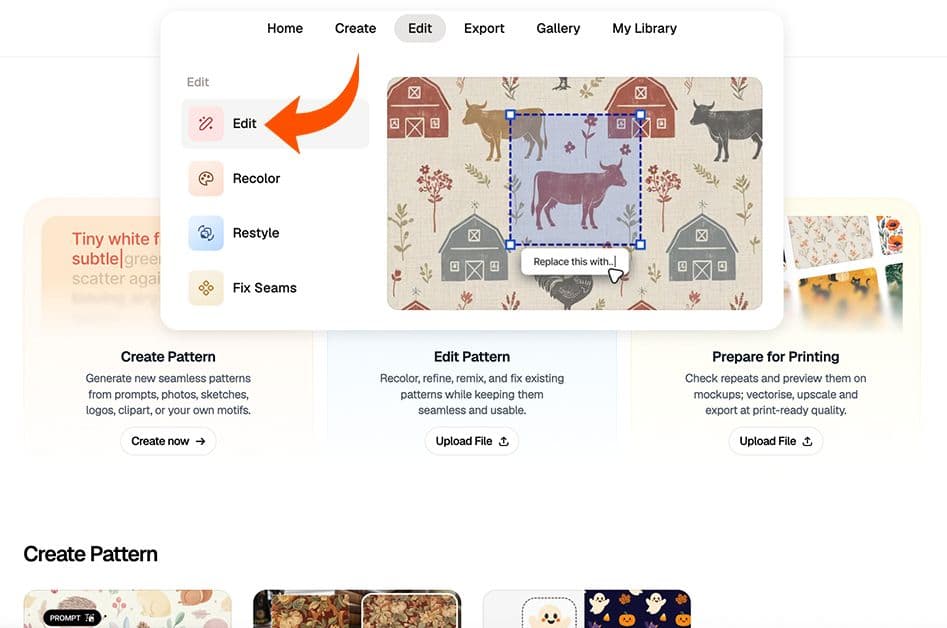
Edit is a spot editing tool for seamless patterns, designed for precise, targeted changes without rebuilding the entire design. You select a specific area, describe what you want to change, and the AI updates that part while matching the existing style and preserving the seamless repeat.
Pattern design often comes down to small details. A pattern can have the right mood, colors, and layout, but still need a few adjustments to feel finished. Instead of regenerating or fixing everything manually, Edit lets you keep what works and refine only what doesn’t while keeping the pattern seamless.
You can use Edit to:
- Remove unwanted elements
- Add new details
- Change the color of a specific object
- Adjust the direction or pose of an element
- Refine small details
- Improve composition
- Make final corrections before downloading your pattern
How to Use Edit
Step 1: Choose a Pattern
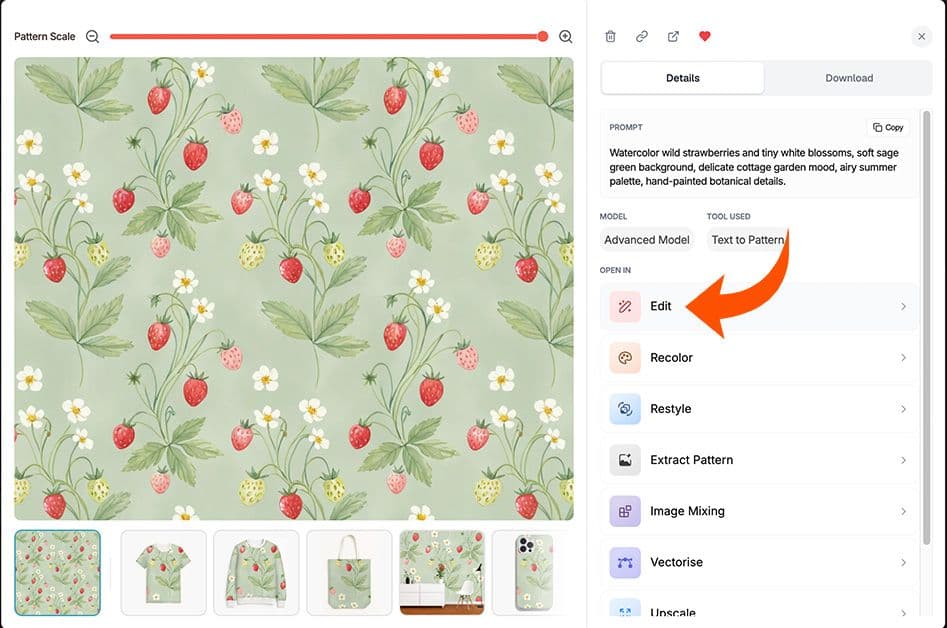
Start with a pattern you have just generated, or choose one from your history or favorites.
Click on the pattern to open the menu with available tools. From there, select Edit. Your pattern will open in a new tab, already uploaded into the Edit tool.
Alternatively, you can edit an existing pattern by going to the Design Tools app, choosing the Edit tab in the navbar, and then selecting Edit from the tool dropdown menu.
Step 2: Select the Area You Want to Change
Edit works on specific parts of the pattern.
Move the boundary box over the element you want to adjust. This could be a flower, animal, icon, leaf, shape, or any other detail in the design.
Try to place the box around the object you want to change, without selecting too much of the surrounding pattern.
Step 3: Write a Clear Prompt
Next, describe the change you want to make.
Be specific and name the element you are editing. Instead of writing “change this,” describe the object and the result you want.
For example:
“Mirror the lion in a different direction.”
“Remove the cloud behind the lion.”
“Change the red flower to pale pink.”
“Add a small yellow flower in this empty space.”
The clearer your instruction, the easier it is for the AI to understand what should change.
Step 4: Generate Your Edit
Click Generate, and Edit will create two options for you to choose from.
Review both versions and select the one that works best for your pattern.
The AI will preserve the seamless structure of the pattern while applying the change to the selected area.
Step 5: Continue Editing
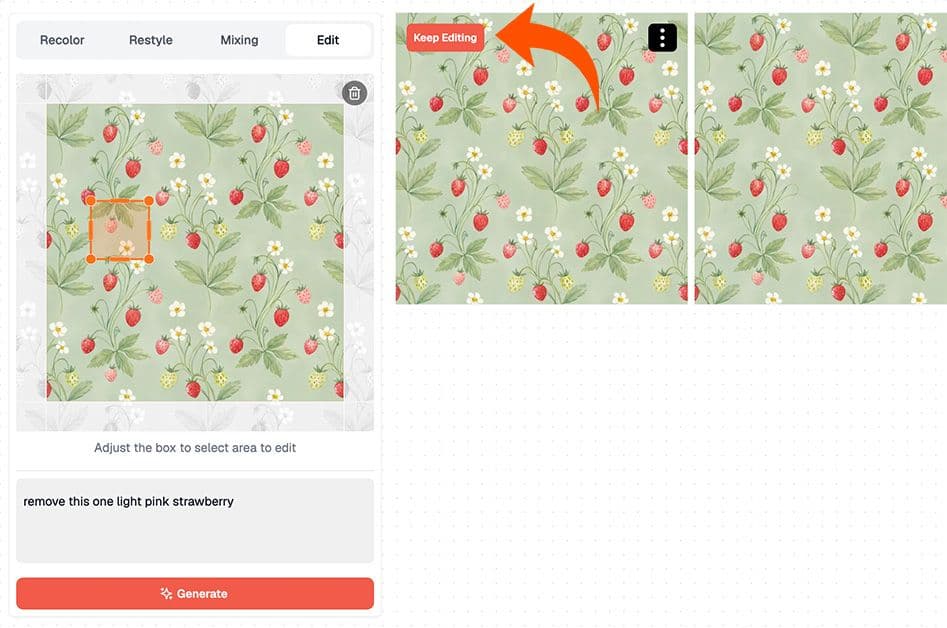
If you like one of the edited options but want to make another change, click Continue Editing. You can keep refining your pattern step by step, without downloading, re-uploading, or starting again.
For example, you might remove 4 of the strawberries in the pattern above – it would require selecting each as a separate edit so that AI knows which berry exactly you want removed.
When you are happy with the result, click on the pattern to open the download pop-up.
Tips for Better Results
AI responds better to clear, specific wording.
Instead of saying:
“Fix this.”
Try:
“Remove one small blue flower.”
Instead of:
“Make it different.”
Try:
“Change the orange leaf to dark green.”
Instead of:
“Flip this.”
Try:
“Mirror the lion horizontally”
Sometimes one word works better than another. For example, “mirror” may give better results than “reflect.” If the first result is not exactly right, try rephrasing the prompt and generating again.
It also helps to focus on one change at a time. Edit is best for precise adjustments, so smaller, clearer edits usually work better than asking for many changes at once.
When to Use Edit vs Other Patterned AI Tools

Edit is best when your pattern is already close to finished and you only need to adjust specific details. Use it to refine small parts without changing the whole design, such as removing or adding elements, adjusting the position or direction of a motif, changing the color of a specific object, or fixing small imperfections in composition. It helps you keep what works and improve what doesn’t while preserving the seamless repeat.
If your pattern works but you want to try different colorways, use Recolor. Instead of editing individual elements, Recolor lets you quickly generate multiple palette variations across the entire design.
If your pattern has visible seams or small tiling issues, use Fix Seams. This tool helps you clean up edges and ensure your pattern tiles perfectly, so you can use it confidently for print or production without rebuilding the design.
From Almost Right to Ready to Use
The best part of Edit is that you do not need to abandon a pattern just because one detail is wrong. You can keep the style, layout, and elements you like, then adjust only the parts that need work, and with Continue Editing, you can make several improvements in one smoother workflow. A good pattern does not always need to be regenerated from scratch; sometimes it just needs a few precise edits.
Once your design is finalized, you can prepare it for production by upscaling it for higher resolution or vectorising it with control over color count, ensuring your pattern is clean, scalable, and ready for print.