Create from Elements Guide: How to Build Surface Patterns with Custom Motifs

Create from Elements gives you direct control over the individual motifs, text, and graphics in your seamless pattern. While Create from Text generates a complete design from a written prompt, Create from Elements is ideal when you want to arrange specific assets and fine-tune the composition yourself.
Use your own illustrations (including motifs created in tools like Procreate or Adobe Illustrator), generate new motifs with AI, add typography, and combine everything into a custom seamless repeat. It is especially useful for geometric patterns with custom drawn motifs, branded designs with logos, conversational/novelty surface patterns and typographic prints.
When to Use Create from Elements
Create from Elements is a good choice when you need:
- Precise brand alignment — Incorporate specific logos, colors, icons, and other brand assets.
- More control over composition — Decide exactly which elements appear and how they are arranged.
- Existing artwork integration — Build patterns from illustrations or graphics you have already created or purchased.
- Typography-based designs — Create repeats featuring names, slogans, messages, or decorative lettering.
Three Ways to Build Your Pattern
Open Create from Elements from the Design Tools menu. You can then add your motifs to the workspace and see how they look in a live seamless-pattern preview.
1. Upload Your Own Images
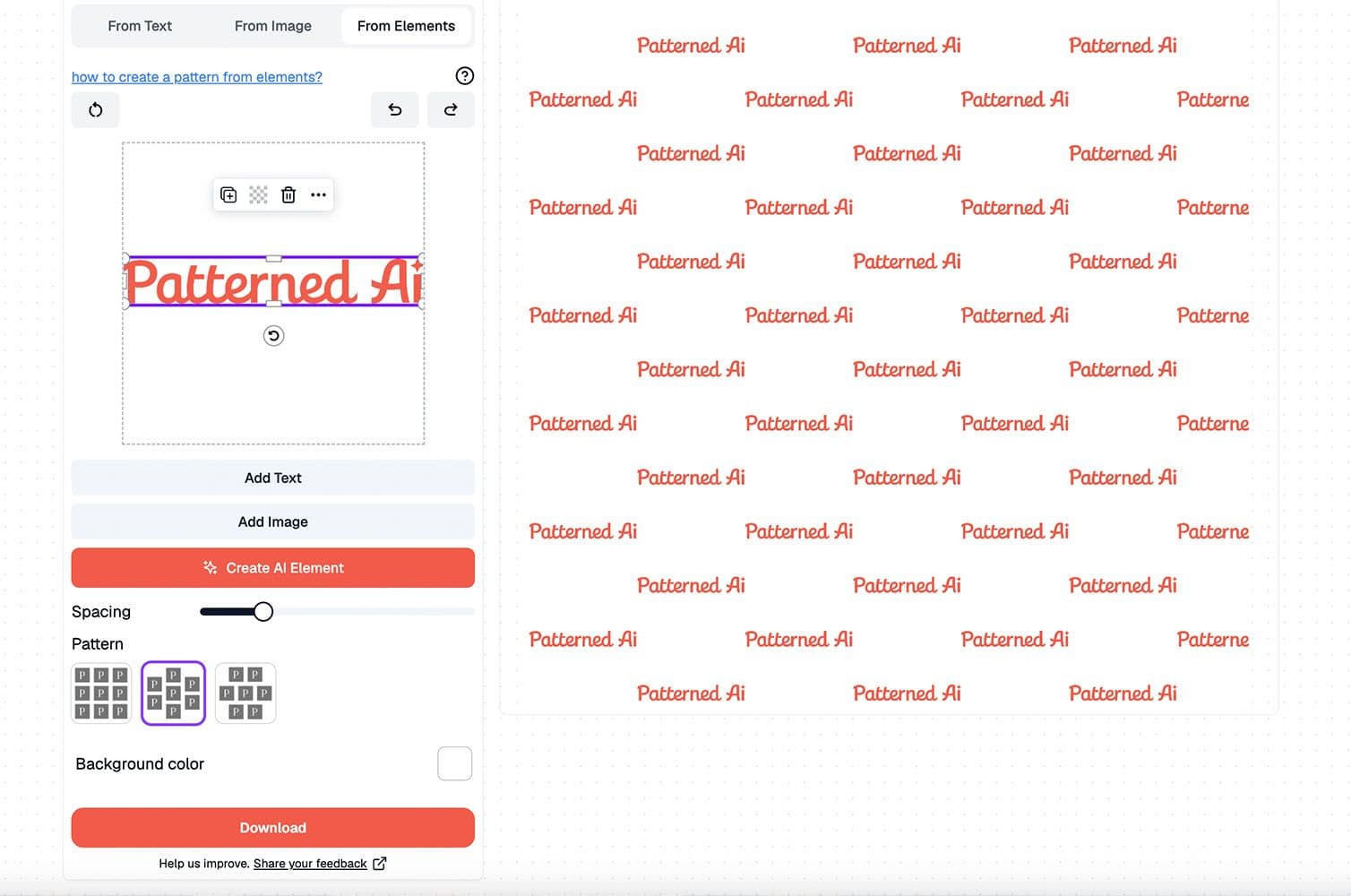
Click Add Image to upload graphics directly to your pattern. You can use:
- Company logos
- Brand icons and symbols
- Custom illustrations
- Procreate or Adobe Illustrator-created motifs
- Licensed graphics and design assets
- Hand-drawn elements that have been digitised
PNG files with transparent backgrounds usually give you the most flexibility, allowing motifs to overlap naturally without visible boxes or unwanted backgrounds.
2. Create Custom AI Elements
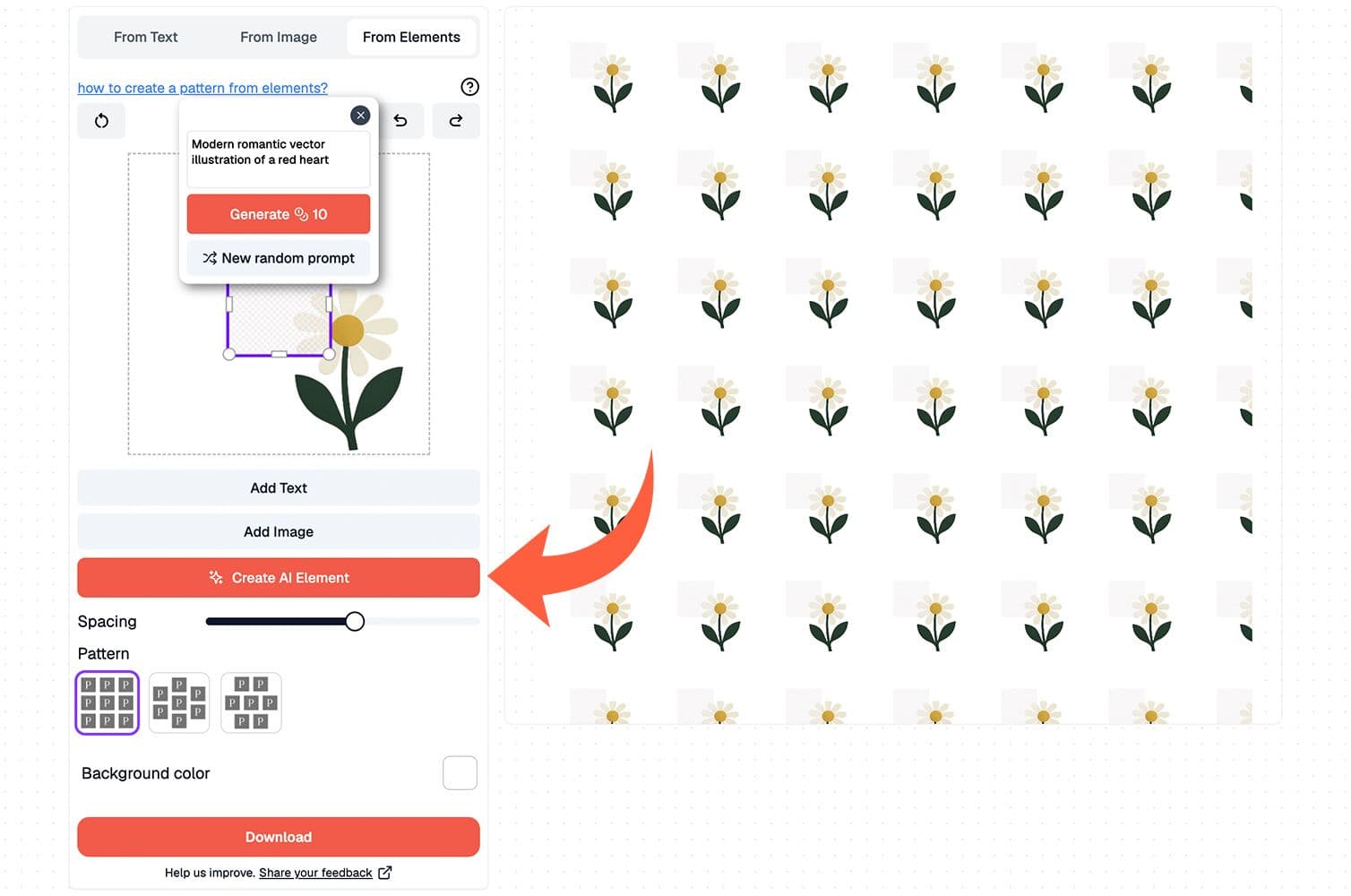
When you do not already have the right motif, click Create AI Element and describe what you want the AI to generate.
For stronger results, include both the subject and its visual style:
- “Watercolour pine tree”
- “Flat vector rainbow in pastel colours”
- “Minimal geometric star with a metallic gold effect”
- “Hand-painted lemon branch with green leaves”
AI-generated elements are created with transparent backgrounds, making them ready to place directly into your pattern.
When generating several motifs for the same design, repeat important style descriptions in every prompt. For example, include “watercolour” in each prompt if you want all the elements to feel like part of the same painted collection.
3. Add Text Elements
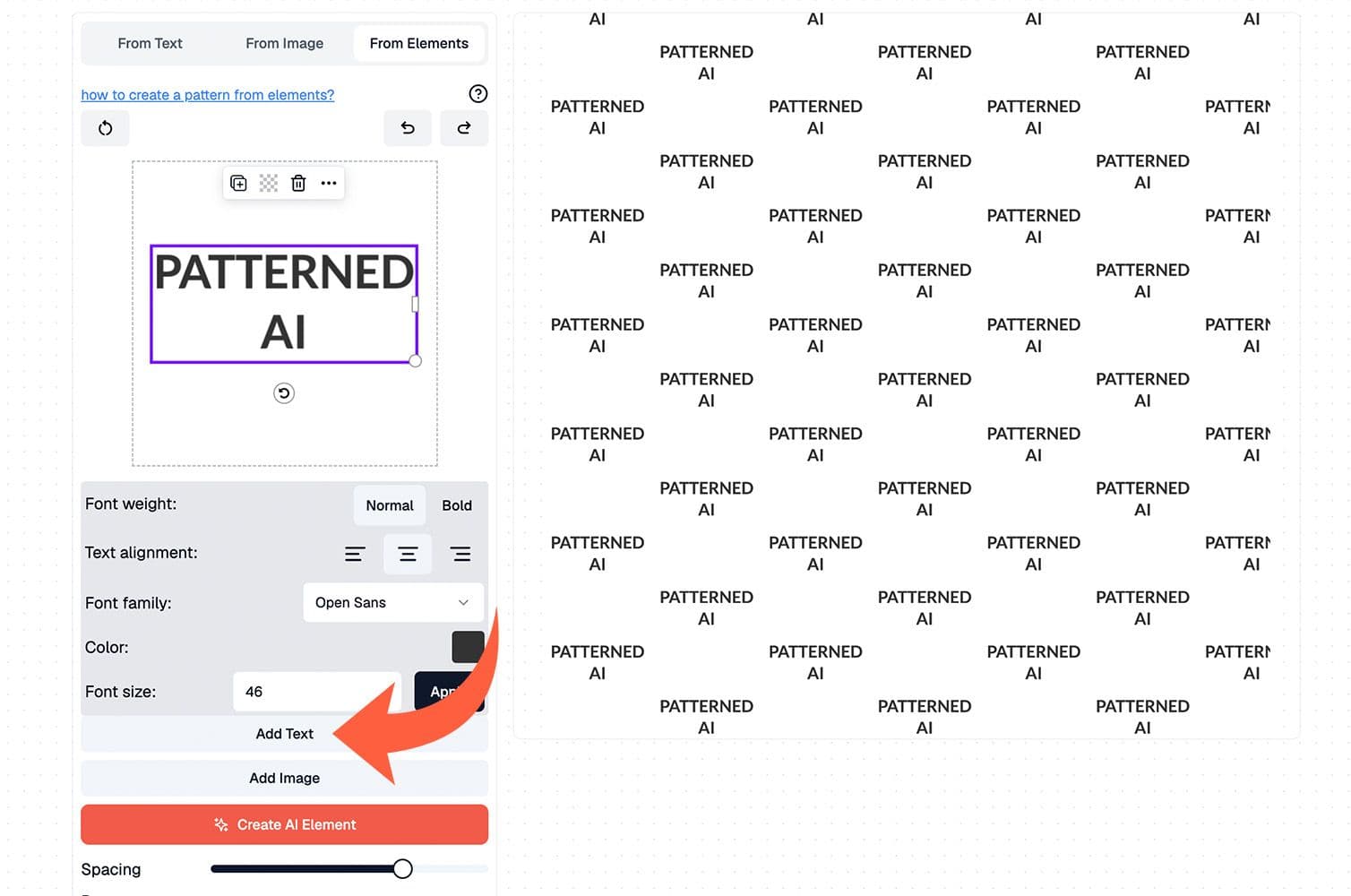
Click Add Text to place words, names, slogans, or messages directly into the pattern. Typography can be used to:
- Reinforce a brand identity
- Create logo-based repeats
- Celebrate events, milestones, or anniversaries
- Add short quotes or messages
- Build an entirely typographic pattern
Adjust the typeface, weight, size, and colour to fit the rest of your design. For more decorative or unusual lettering, you can also generate the words as an AI element by describing the lettering style in your prompt.
Design Tools and Controls
Editing Individual Elements
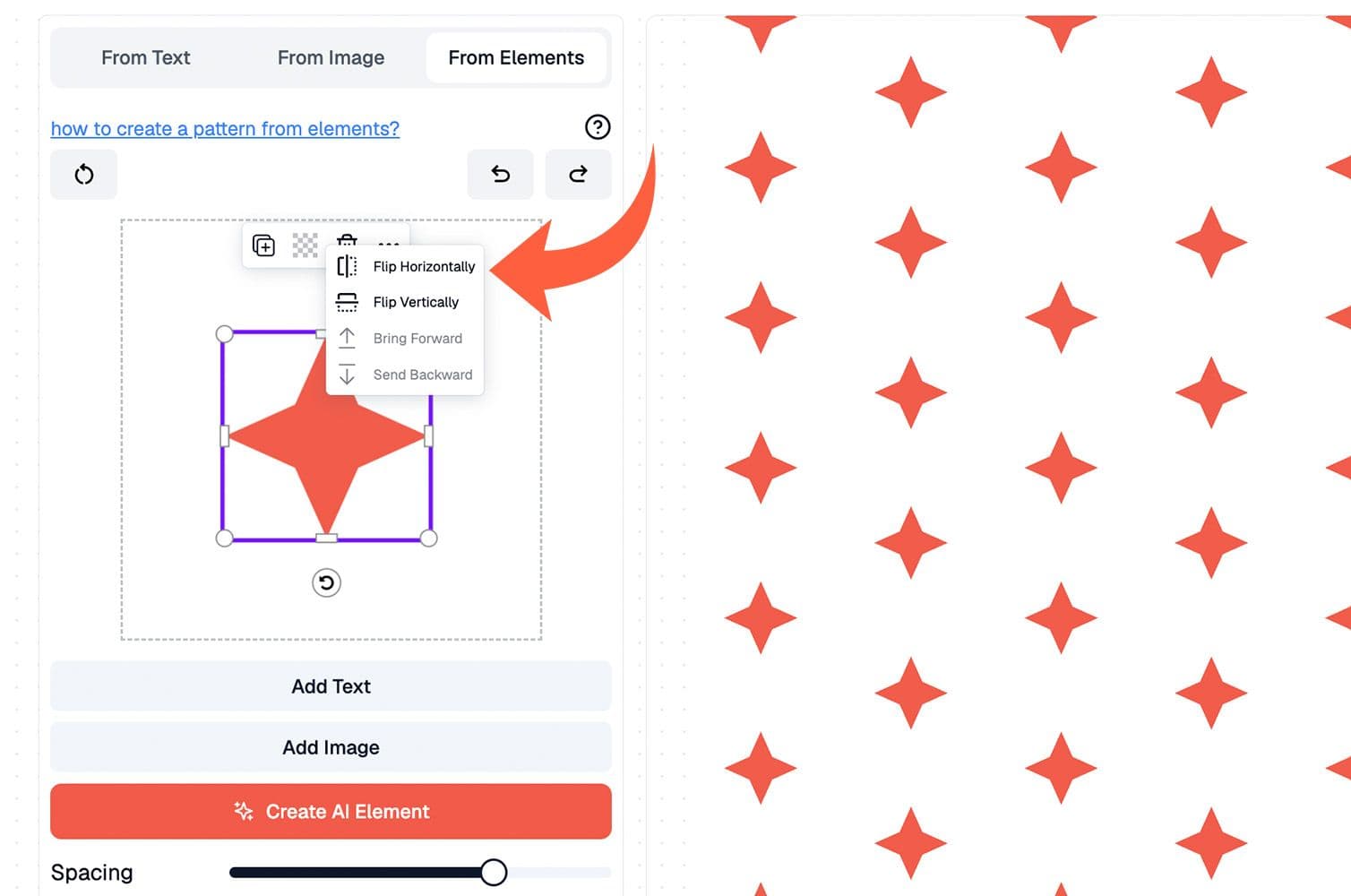
Select any element in the workspace to adjust it. Available controls allow you to:
- Duplicate elements
- Change transparency
- Flip motifs horizontally or vertically
- Move elements in front of or behind one another
- Delete elements you no longer need
Use these controls to vary repeated motifs, create layered compositions, and prevent the pattern from looking too uniform.
Adjusting Pattern Spacing
The Spacing control changes the distance between all the elements in the repeat.
Increasing the spacing creates smaller, more widely dispersed motifs. Decreasing it produces a larger, denser pattern. This makes it easy to test different scales without resizing every element individually.
Consider where the finished pattern will be used. Small, dense repeats may work well for clothing and accessories, while larger, more open compositions can be effective for wallpaper, bedding, and statement fabrics.
Choosing a Pattern Layout
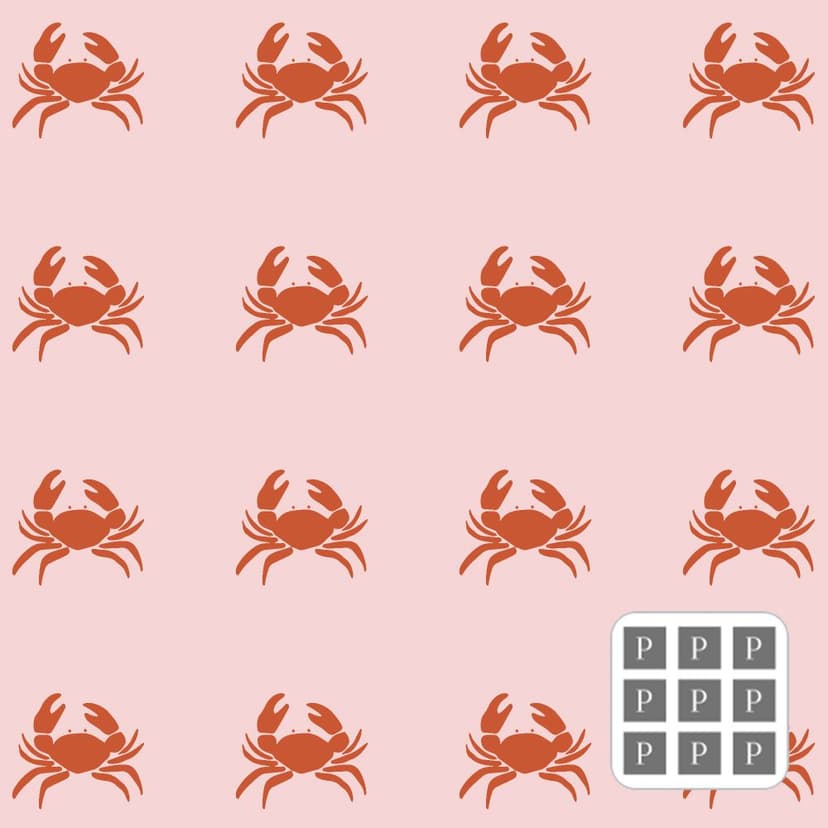
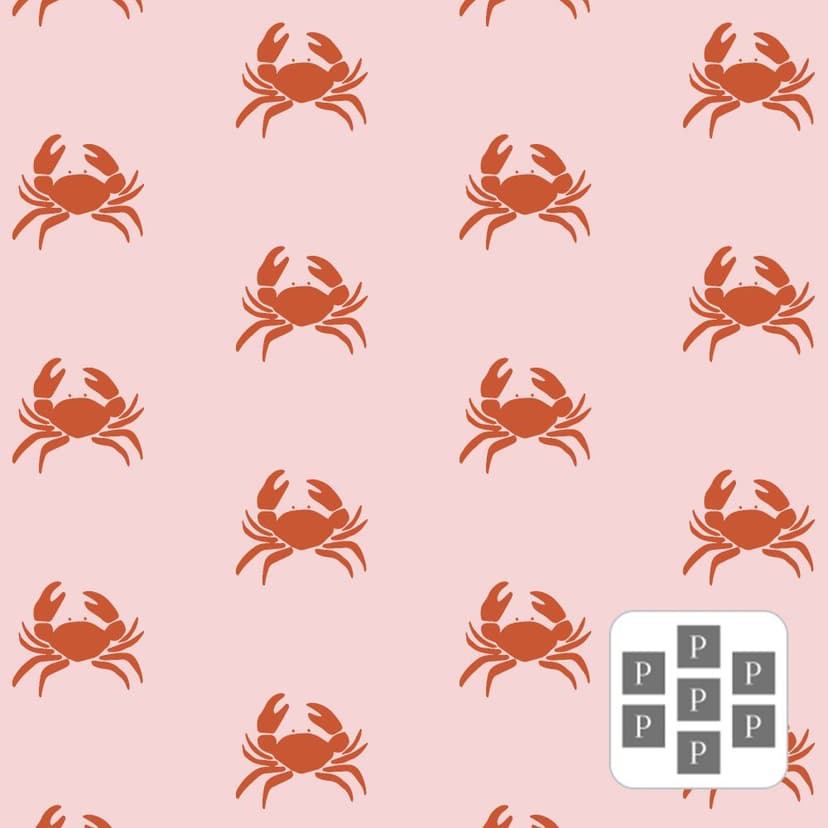
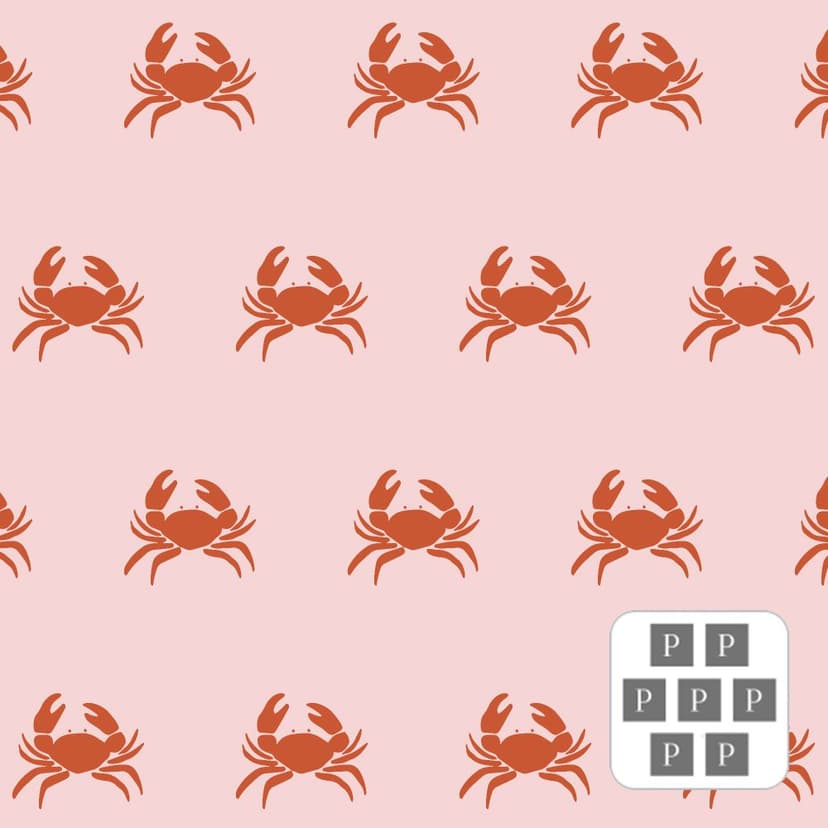
Create from Elements includes three classic repeat structures. Each one changes how the tile is repeated and can give the same collection of motifs a noticeably different rhythm.
- Full Drop or Block Repeat. Elements are repeated evenly in a straight grid, with each row and column aligned. This creates a clear, structured composition and works well for geometric designs, evenly distributed motifs, and patterns containing several different elements.
- Half-Drop Repeat. Each new column drops vertically by half the repeat height. This breaks up the visible grid and creates a more dynamic diagonal flow. Half-drop repeats are widely used for florals, botanical designs, organic motifs, and compositions where you want the repeat structure to feel less obvious.
- Half-Brick Repeat. Each new row shifts sideways by half a repeat, creating an arrangement similar to brickwork. This layout works particularly well for logos, large focal motifs, simple icons, and patterns built from one or two main elements.
Try switching between the three layouts before downloading your finished pattern. A design that feels too rigid in a block repeat may look more natural as a half-drop or half-brick repeat.
Choosing a Background
Use the background colour control to establish the foundation of your pattern.
You can:
- Select a colour manually
- Enter a HEX code for more precise colour matching
- Keep the background transparent
Test both light and dark backgrounds before making your final choice. A different background colour can completely change the contrast, mood, and visibility of the motifs.
Understanding Your Download Options
Single Tile
The Single Tile is the fundamental repeating unit of your seamless pattern.
Use it when:
- The final product dimensions are not yet known
- A printer or manufacturer will repeat and scale the design
- You need a flexible file for fabric, wallpaper, packaging, or other surfaces
- You want to continue editing the seamless tile in design software
The tile repeats continuously in every direction, allowing it to cover products and print areas of any size.
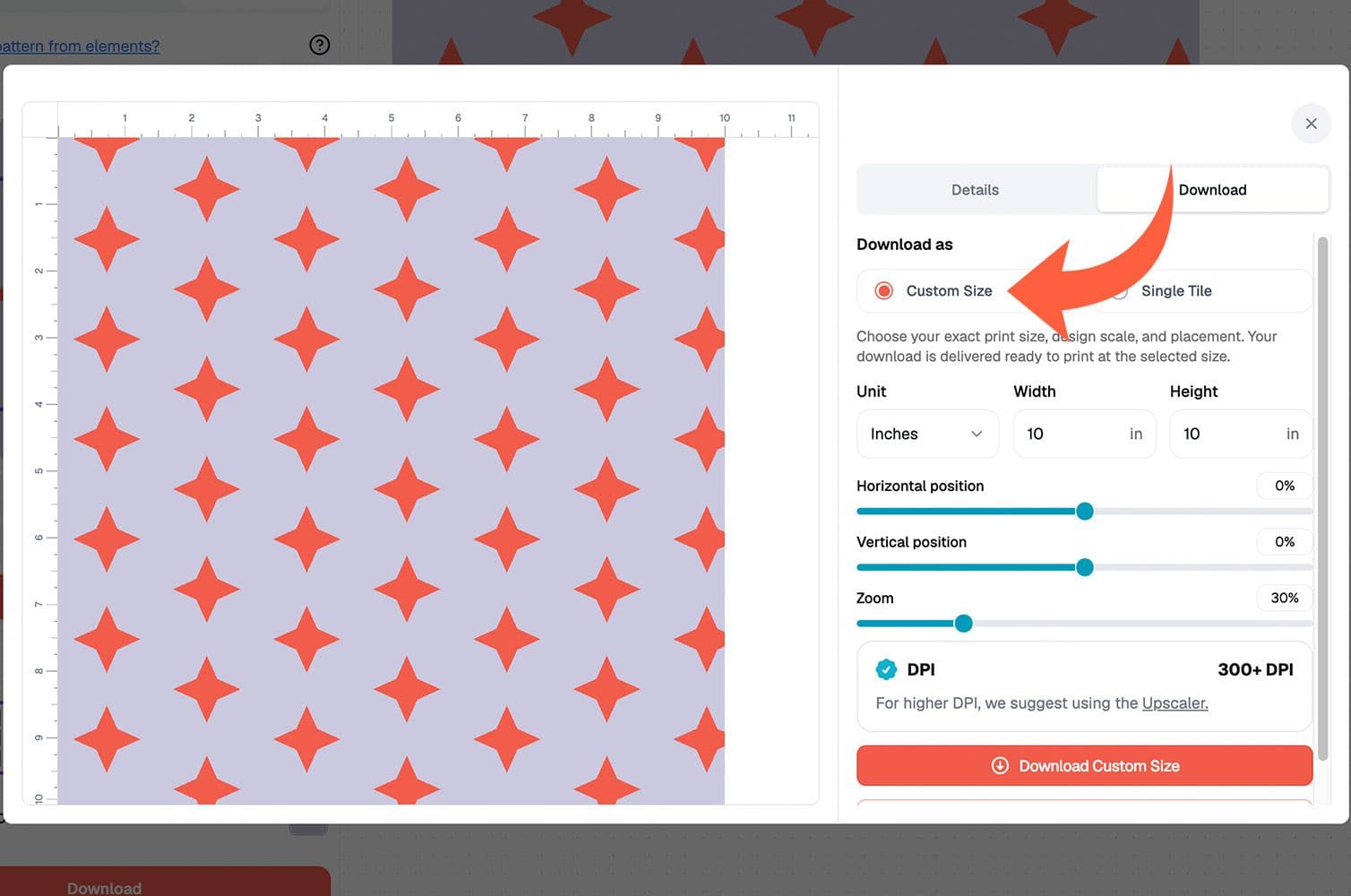
Custom Size
The Custom Size option creates a complete repeated image at the exact pixel dimensions you enter.
Use it when:
- You already know the required output dimensions
- You want to control the scale and placement of the pattern within the final image
- You need a ready-sized file for a specific product or print area
The design is repeated across the selected dimensions, but the outer edges of the downloaded image are not intended to tile seamlessly. Choose Single Tile when you need a reusable seamless repeat.
Before sending artwork to production, confirm the required dimensions, scale, colour mode, and resolution with your printing provider. Ordering a physical sample is also recommended before committing to a full production run.
Prepare Your Pattern for Production with Vectorise
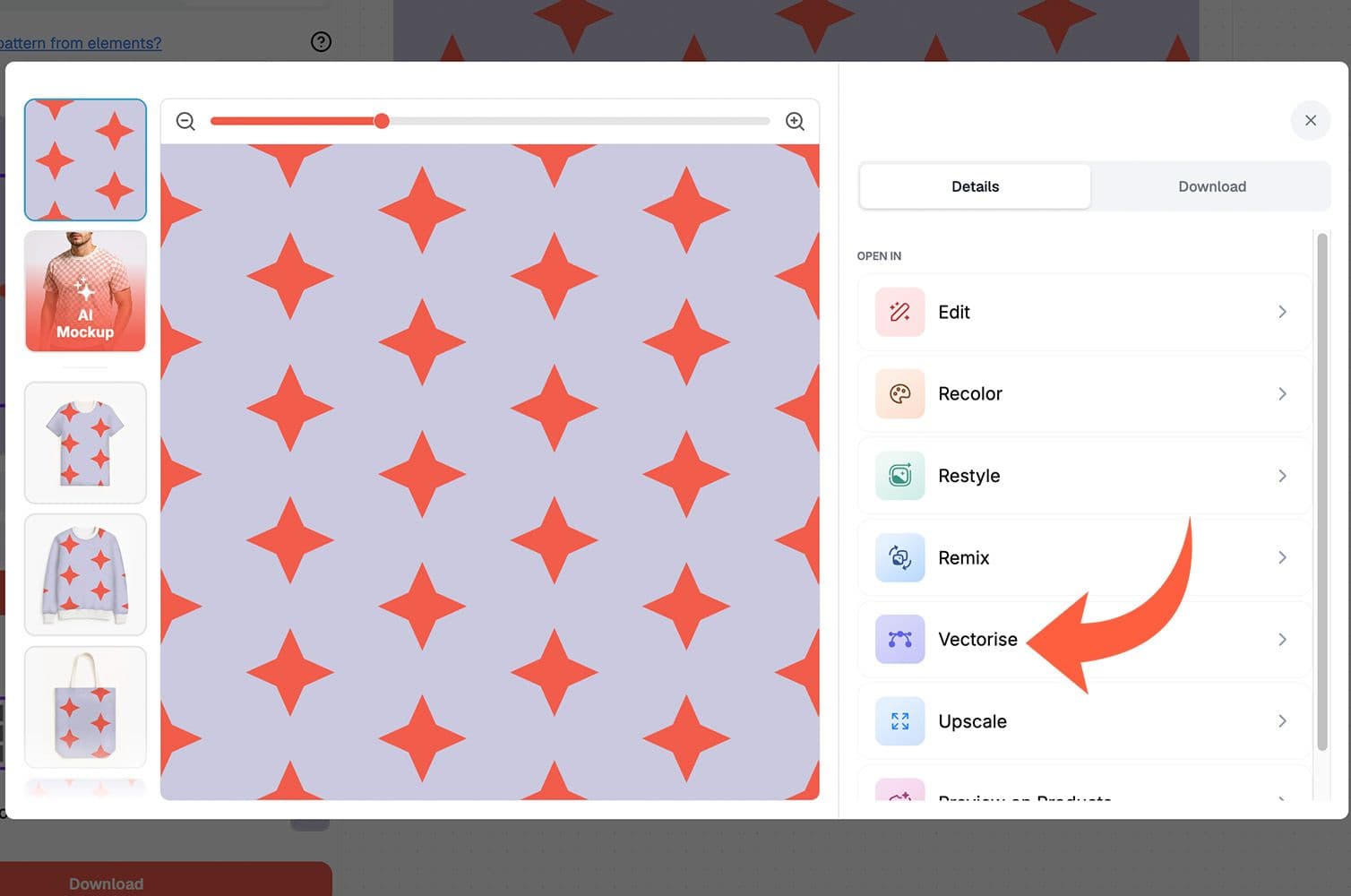
For cleaner scaling and professional print preparation, choose the Vectorise tool when downloading a pattern. Keep Seamless Pattern enabled for repeating tiles, choose the number of colours you want to retain, and export the result in the format that fits your workflow:
- SVG for a seamless, infinitely scalable vector file
- Adobe Illustrator (.ai) for editable, colour-separated layers
- Individual colour TIFFs for one production file per colour, ideal for screen-printing separations
Vectorise also works with standalone illustrations and placement prints—simply turn off the seamless option after uploading.
Start Building Your Pattern
Create from Elements turns your own graphics, AI-generated motifs, and typography into a fully customised seamless repeat. Whether you are developing a branded print, making novelty or geometric designs, or creating a pattern around one distinctive motif, you can control the individual elements while the tool handles the seamless structure.
Open Create from Elements, add your motifs, experiment with different layouts and spacing, and build a repeat that is ready for your next creative or production project.